Before you start
Check the Port Numbers here. MariaDB first Port would be 3306, then 3307, 3308.The Ports below have been choosen to avoid potential conflicts, but I didn't have a Problem using the Standard.
If you have MySQL installed, you should be able to run both, though I haven't tried it. If you do, use the Port Numbers as suggested here.
I also assume you will have APACHE and PHP installed as well as (or will install) PHPMYADMIN.
Please see the Credits at the End.
I could just copy almost everything related to MariaDB1
APACHE & PHP
sudo apt install apache2
sudo apt install php libapache2-mod-php php-mysql
sudo apt install phpmyadmin
sudo systemctl start apache2
sudo systemctl enable apache2
sudo apt install php libapache2-mod-php php-mysql
sudo apt install phpmyadmin
sudo systemctl start apache2
sudo systemctl enable apache2
Do this as root user
If root doesn't have a password yet, enter
sudo passwd
Start using root by entering
Install MariaDB
sudo apt update && sudo apt upgrade -y
sudo apt install mariadb-client mariadb-server
sudo apt install mariadb-client mariadb-server
Check Status
sudo systemctl status mysql
Stop MariaDB
sudo systemctl stop mysql
Configuring MariaDB for Running Multiple Database Instances
cd /etc/mysql/mariadb.conf.d/
sudo mv -v 50-server.cnf 50-server.cnf.backup
sudo vim 50-server-multi.cnf
sudo mv -v 50-server.cnf 50-server.cnf.backup
sudo vim 50-server-multi.cnf
Edit 50-server-multi.cnf
[mysqld_multi]
mysqld = /usr/bin/mysqld_safe
mysqladmin = /usr/bin/mysqladmin
log = /var/log/mysql/mysqld_multi.log
user=multi_admin
password=******
mysqld = /usr/bin/mysqld_safe
mysqladmin = /usr/bin/mysqladmin
log = /var/log/mysql/mysqld_multi.log
user=multi_admin
password=******
Edit 50-server1.cnf
[mysqld1]
user = mysql
pid-file = /run/mysqld/mysqld1.pid
socket = /run/mysqld/mysqld1.sock
basedir = /usr
datadir = /var/lib/mysql1
tmpdir = /tmp
lc-messages-dir = /usr/share/mysql
bind-address = 0.0.0.0
query_cache_size = 100M
log_error = /var/log/mysql/mysqld1_error.log
expire_logs_days = 10
character-set-server = utf8mb4
collation-server = utf8mb4_general_ci
port = 20001
max_connections = 2000
user = mysql
pid-file = /run/mysqld/mysqld1.pid
socket = /run/mysqld/mysqld1.sock
basedir = /usr
datadir = /var/lib/mysql1
tmpdir = /tmp
lc-messages-dir = /usr/share/mysql
bind-address = 0.0.0.0
query_cache_size = 100M
log_error = /var/log/mysql/mysqld1_error.log
expire_logs_days = 10
character-set-server = utf8mb4
collation-server = utf8mb4_general_ci
port = 20001
max_connections = 2000
Edit 50-server2.cnf
[mysqld1]
user = mysql
pid-file = /run/mysqld/mysqld2.pid
socket = /run/mysqld/mysqld2.sock
basedir = /usr
datadir = /var/lib/mysql2
tmpdir = /tmp
lc-messages-dir = /usr/share/mysql
bind-address = 0.0.0.0
query_cache_size = 100M
log_error = /var/log/mysql/mysqld2_error.log
expire_logs_days = 10
character-set-server = utf8mb4
collation-server = utf8mb4_general_ci
port = 20002
max_connections = 2000
user = mysql
pid-file = /run/mysqld/mysqld2.pid
socket = /run/mysqld/mysqld2.sock
basedir = /usr
datadir = /var/lib/mysql2
tmpdir = /tmp
lc-messages-dir = /usr/share/mysql
bind-address = 0.0.0.0
query_cache_size = 100M
log_error = /var/log/mysql/mysqld2_error.log
expire_logs_days = 10
character-set-server = utf8mb4
collation-server = utf8mb4_general_ci
port = 20002
max_connections = 2000
Edit 50-server3.cnf
[mysqld1]
user = mysql
pid-file = /run/mysqld/mysqld3.pid
socket = /run/mysqld/mysqld3.sock
basedir = /usr
datadir = /var/lib/mysql3
tmpdir = /tmp
lc-messages-dir = /usr/share/mysql
bind-address = 0.0.0.0
query_cache_size = 100M
log_error = /var/log/mysql/mysqld3_error.log
expire_logs_days = 10
character-set-server = utf8mb4
collation-server = utf8mb4_general_ci
port = 20003
max_connections = 2000
user = mysql
pid-file = /run/mysqld/mysqld3.pid
socket = /run/mysqld/mysqld3.sock
basedir = /usr
datadir = /var/lib/mysql3
tmpdir = /tmp
lc-messages-dir = /usr/share/mysql
bind-address = 0.0.0.0
query_cache_size = 100M
log_error = /var/log/mysql/mysqld3_error.log
expire_logs_days = 10
character-set-server = utf8mb4
collation-server = utf8mb4_general_ci
port = 20003
max_connections = 2000
Configuration
sudo touch /var/log/mysql/mysqld_multi.log
sudo chown -v mysql:adm /var/log/mysql/mysqld_multi.log
sudo chmod -v u=rw,g=rw,o= /var/log/mysql/mysqld_multi.log
sudo touch /var/log/mysql/mysqld{1..3}_error.log
sudo chown -v mysql:adm /var/log/mysql/mysqld{1..3}_error.log
sudo chmod -v u=rw,g=rw,o= /var/log/mysql/mysqld{1..3}_error.log
sudo mkdir -v /var/lib/mysql{1..3}
sudo chown -v mysql:mysql /var/lib/mysql{1..3}
sudo chmod -v u=rwx,g=rx,o=rx /var/lib/mysql{1..3}
sudo chown -v mysql:adm /var/log/mysql/mysqld_multi.log
sudo chmod -v u=rw,g=rw,o= /var/log/mysql/mysqld_multi.log
sudo touch /var/log/mysql/mysqld{1..3}_error.log
sudo chown -v mysql:adm /var/log/mysql/mysqld{1..3}_error.log
sudo chmod -v u=rw,g=rw,o= /var/log/mysql/mysqld{1..3}_error.log
sudo mkdir -v /var/lib/mysql{1..3}
sudo chown -v mysql:mysql /var/lib/mysql{1..3}
sudo chmod -v u=rwx,g=rx,o=rx /var/lib/mysql{1..3}
Install Databases
sudo mysql_install_db --user=mysql --datadir=/var/lib/mysql1
sudo mysql_install_db --user=mysql --datadir=/var/lib/mysql2
sudo mysql_install_db --user=mysql --datadir=/var/lib/mysql3
sudo mysql_install_db --user=mysql --datadir=/var/lib/mysql2
sudo mysql_install_db --user=mysql --datadir=/var/lib/mysql3
If you get permission errors sudo nano /etc/apparmor.d/mariadbd.WORKING
Search for /var/lib/mysql and add the new path to the end.
/var/lib/mysql1/ r,
/var/lib/mysql1/** rwk,
/var/lib/mysql2/ r,
/var/lib/mysql2/** rwk,
/var/lib/mysql3/ r,
/var/lib/mysql3/** rwk,
/var/lib/mysql4/ r,
/var/lib/mysql4/** rwk,
/var/lib/mysql5/ r,
/var/lib/mysql5/** rwk,
/var/lib/mysql6/ r,
/var/lib/mysql6/** rwk,
/var/lib/mysql7/ r,
/var/lib/mysql7/** rwk,
sudo systemctl reload apparmor
Running multiple Instances
sudo mysqld_multi report
Start and Report
sudo mysqld_multi start
sudo mysqld_multi report
sudo mysqld_multi report
Do the next TWO Steps for each Instance
Connect to an Instance
sudo mysql -S /run/mysqld/mysqld1.sock -u root
Add User and Rights
GRANT SHUTDOWN ON *.* TO 'multi_admin'@'localhost' IDENTIFIED BY 'secret';
GRANT ALL ON *.* to 'root'@'%' IDENTIFIED BY '!QAZ2wsx' WITH GRANT OPTION;
FLUSH PRIVILEGES;
EXIT;
GRANT ALL ON *.* to 'root'@'%' IDENTIFIED BY '!QAZ2wsx' WITH GRANT OPTION;
FLUSH PRIVILEGES;
EXIT;
Stop the Instances
sudo mysqld_multi stop
Allow run at Boot
sudo crontab -e
Add to Crontab
Choose NANO (Option 1) to Edit
@reboot /usr/bin/mysqld_multi start
Bug alert!
If you experience Problems that /run/mysqld/mysql{n}.socket can not be found or createdBug Report
Create a newfile /etc/tmpfiles.d/mysql.conf:
# systemd tmpfile settings for mysql
# See tmpfiles.d(5) for details
d /var/run/mysqld 0755 mysql mysql -
After reboot, mysql should start normally.# See tmpfiles.d(5) for details
d /var/run/mysqld 0755 mysql mysql -
MariaDBD-multi as Service (instead of Crontab)
Edit /etc/systemd/system/mariadbd.service
[Unit]
Description=MariaDBD Multi Server for instance
After=syslog.target
After=network.target
[Service]
User=mysql
Group=mysql
Type=forking
ExecStart=/usr/bin/mariadbd-multi start
ExecStop=/usr/bin/mariadbd-multi stop
Restart=always
PrivateTmp=true
[Install]
WantedBy=multi-user.target
Run
Description=MariaDBD Multi Server for instance
After=syslog.target
After=network.target
[Service]
User=mysql
Group=mysql
Type=forking
ExecStart=/usr/bin/mariadbd-multi start
ExecStop=/usr/bin/mariadbd-multi stop
Restart=always
PrivateTmp=true
[Install]
WantedBy=multi-user.target
sudo systemctl enable mariadbd.service
Caution
This is Important!
The Base Consiguration is left UNTOUCHED, you can still run mariadbd on the Basic configuration, but not concurrently unless you change Ports.
Likewise the SOCKET in Configuration my.cnf points to the Base Configuration.
That could produce confusing error messages, if you switch between Standard and Multi
or some Program uses the wrong Connection and can't find Tables.
Likewise the SOCKET in Configuration my.cnf points to the Base Configuration.
That could produce confusing error messages, if you switch between Standard and Multi
or some Program uses the wrong Connection and can't find Tables.
PHPMYADMIN Config File /etc/phpmyadmin/config.inc.php2
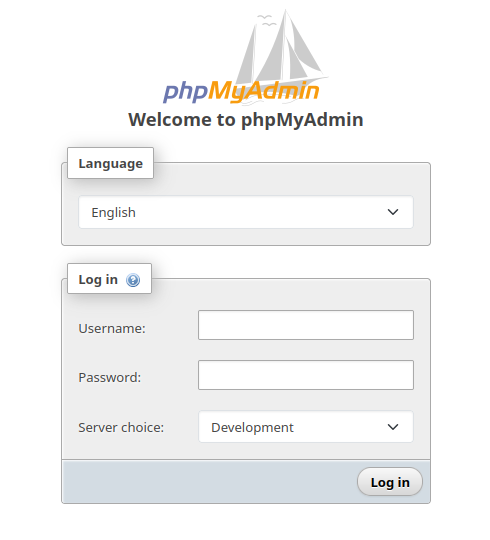
To have your Instaces in a List at PHPMYADMIN Logon add to the end:Validate the PORT NUMBERS!
$i=1;
$cfg['Servers'][$i]['verbose'] = 'Development';
$cfg['Servers'][$i]['auth_type'] = 'cookie';
$cfg['Servers'][$i]['host'] = '127.0.0.1';
$cfg['Servers'][$i]['port'] = 20001;
$cfg['Servers'][$i]['connect_type'] = 'tcp';
$cfg['Servers'][$i]['compress'] = false;
$cfg['Servers'][$i]['AllowNoPassword'] = false;
$i=2;
$cfg['Servers'][$i]['verbose'] = 'Quality';
$cfg['Servers'][$i]['auth_type'] = 'cookie';
$cfg['Servers'][$i]['host'] = '127.0.0.1';
$cfg['Servers'][$i]['port'] = 20002;
$cfg['Servers'][$i]['connect_type'] = 'tcp';
$cfg['Servers'][$i]['compress'] = false;
$cfg['Servers'][$i]['AllowNoPassword'] = false;
$i=3;
$cfg['Servers'][$i]['verbose'] = 'Production';
$cfg['Servers'][$i]['auth_type'] = 'cookie';
$cfg['Servers'][$i]['host'] = '127.0.0.1';
$cfg['Servers'][$i]['port'] = 20003;
$cfg['Servers'][$i]['connect_type'] = 'tcp';
$cfg['Servers'][$i]['compress'] = false;
$cfg['Servers'][$i]['AllowNoPassword'] = false;
$cfg['Servers'][$i]['verbose'] = 'Development';
$cfg['Servers'][$i]['auth_type'] = 'cookie';
$cfg['Servers'][$i]['host'] = '127.0.0.1';
$cfg['Servers'][$i]['port'] = 20001;
$cfg['Servers'][$i]['connect_type'] = 'tcp';
$cfg['Servers'][$i]['compress'] = false;
$cfg['Servers'][$i]['AllowNoPassword'] = false;
$i=2;
$cfg['Servers'][$i]['verbose'] = 'Quality';
$cfg['Servers'][$i]['auth_type'] = 'cookie';
$cfg['Servers'][$i]['host'] = '127.0.0.1';
$cfg['Servers'][$i]['port'] = 20002;
$cfg['Servers'][$i]['connect_type'] = 'tcp';
$cfg['Servers'][$i]['compress'] = false;
$cfg['Servers'][$i]['AllowNoPassword'] = false;
$i=3;
$cfg['Servers'][$i]['verbose'] = 'Production';
$cfg['Servers'][$i]['auth_type'] = 'cookie';
$cfg['Servers'][$i]['host'] = '127.0.0.1';
$cfg['Servers'][$i]['port'] = 20003;
$cfg['Servers'][$i]['connect_type'] = 'tcp';
$cfg['Servers'][$i]['compress'] = false;
$cfg['Servers'][$i]['AllowNoPassword'] = false;
PHP Configuration File /etc/php/<version>/apache2/php.ini
Double Check that you have the mysqli extention in the File or add it.
extension=mysqli.so
Reboot
reboot
Validate Connection
Enter the Command below. MariaDB will acknowledge the Connection, if successful.
mysql -u <db_user> -h <db_host> -p -P <3306>
Congratulations
You just configured a bare bone Cloud Server
If your Computer were on a Company Network with IP Addresses to spare, you could change the Binding in the Connfiguration to reflect those IP Addresses that you assigned to your Network Card, do the same with the Bindings of the Sub-Directories of the Apache Sever and you can sell Cloud Services.
Ok, there is Caveat down the Road, like fail over Procedures, Database Replication, etc. But that's for another day and keep in mind,
I don't do that stuff for a living.
If your Computer were on a Company Network with IP Addresses to spare, you could change the Binding in the Connfiguration to reflect those IP Addresses that you assigned to your Network Card, do the same with the Bindings of the Sub-Directories of the Apache Sever and you can sell Cloud Services.
Ok, there is Caveat down the Road, like fail over Procedures, Database Replication, etc. But that's for another day and keep in mind,
I don't do that stuff for a living.
Driver Issues? LIBSSL Missing?
Enter ldd <Library_Name> to find what is missing. Adjust Code below to correct version.
curl -O http://security.ubuntu.com/ubuntu/pool/main/o/openssl/libssl1.1_1.1.1f-1ubuntu2.22_amd64.deb
sudo dpkg -i libssl1.1_1.1.1f-1ubuntu2.22_amd64.deb
sudo dpkg -i libssl1.1_1.1.1f-1ubuntu2.22_amd64.deb
Credits:
https://hackmd.io/@necdisd/HkXYj_IM2#Running-Multiple-MariaDB https://dba.stackexchange.com/questions/125455/connecting-phpmyadmin-to-two-different-mysql-instances-on-the-same-host